Quick Answer
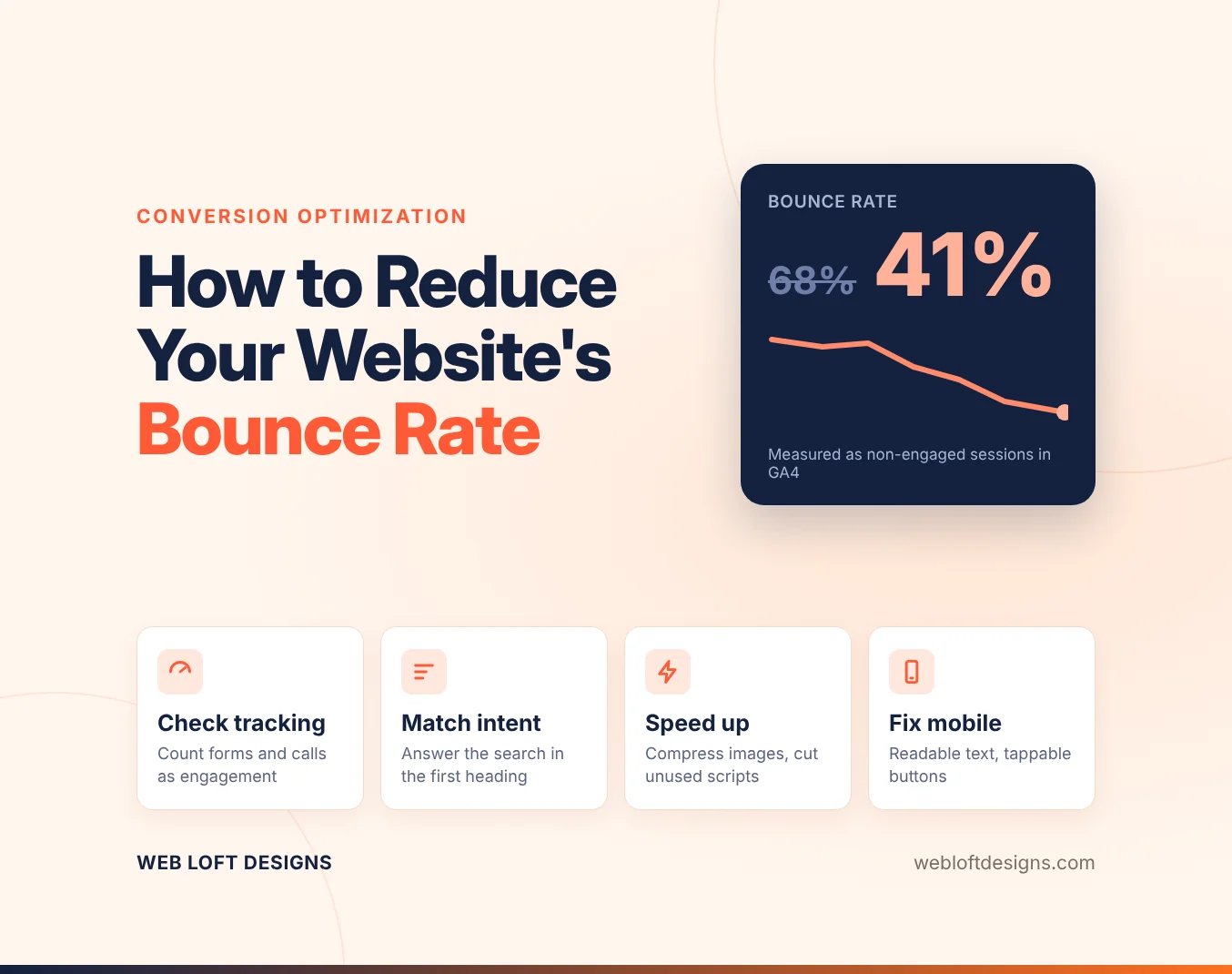
To reduce your website’s bounce rate, first make sure your analytics counts real engagement such as form submissions and phone clicks. Then fix the highest-traffic pages first: match the opening heading to the search intent, move the main call to action higher, cut slow images and scripts, remove intrusive pop-ups and test on a phone. Change one thing at a time and measure each change.
- In GA4, bounce rate is the share of sessions that were not engaged.
- Missing event tracking makes engaged visitors look like bounces.
- Prioritize pages by traffic, bounce rate and business value.
- Most fixes happen in the page editor, even when your CMS is hard to update.
Table of Contents
- What Bounce Rate Means in Google Analytics 4
- Is Your Bounce Rate a Real Problem?
- Common Causes of a High Bounce Rate
- Prioritize Pages by Traffic and Business Value
- Quick Fixes When Your CMS Is Hard to Update
- Make Pages Work on Phones Without a Rebuild
- Measure Each Change in Google Analytics
- Get Help Finding What Is Driving Visitors Away
- Frequently Asked Questions
What Bounce Rate Means in Google Analytics 4
In Google Analytics 4, bounce rate is the percentage of sessions that were not engaged. It is the inverse of engagement rate: if 60% of sessions are engaged, the bounce rate is 40%.
GA4 counts a session as engaged when the visitor does at least one of these:
- Stays on the site for more than 10 seconds (the default, which you can raise)
- Triggers a key event, such as a form submission or a phone click
- Views two or more pages
This is different from the older Universal Analytics definition, where any single-page visit counted as a bounce. A visitor who reads a full article for three minutes and leaves is a bounce under the old definition but an engaged session in GA4. If you are comparing today’s numbers with reports from before 2023, you are comparing two different metrics.
Is Your Bounce Rate a Real Problem?
Before you change any page, confirm that the number reflects visitor behavior and not a tracking gap. Ask one question: did visitors leave because the page failed them, or because they got what they came for?
Three signs it is a measurement issue
- Missing event tracking. If form submissions, phone clicks and file downloads are not tracked as key events, a visitor who calls you from a 5-second visit looks like a bounce. Add the events first, then check the number again after a couple of weeks.
- Tag or consent failures. A broken analytics tag, a cookie-consent banner that blocks tracking or ad blockers can stop data from reaching GA4. Compare GA4 traffic with your host’s visitor counts; a large gap points to a tracking problem.
- Single-visit successes. A visitor who lands on a contact, directions or support page and gets the answer in one visit is not a failure. Judge those pages separately from the site-wide average.
Watch out: if you edit pages before fixing tracking, you lose a clean baseline and won’t be able to tell whether the edit helped or the measurement changed.
Common Causes of a High Bounce Rate
Most high bounce rates come from a short list of problems, and most of them can be fixed without rebuilding the site.
- Slow pages. Visitors on phones often leave before a heavy page finishes loading.
- Mismatched content. The page does not answer the question the visitor searched for.
- Unclear next step. No obvious button, link or form tells the visitor what to do.
- Intrusive pop-ups. A modal that covers the content on arrival sends people back to the search results.
- Poor mobile layout. Small text, hard-to-tap buttons or key content buried below large images.
Pick the two or three causes that match your top pages. Fixing everything at once makes it impossible to tell what helped.
Industry sites have their own patterns. Manufacturers, for example, often see bounces from spec-sheet visitors who found exactly what they needed. We cover that case in our guide to reducing bounce rate on manufacturing websites.
Prioritize Pages by Traffic and Business Value
Not every page deserves the same effort. A blog post with 40 visits a month matters less than the service page that brings in your leads.
Build a simple list with four columns: page, monthly sessions, bounce rate and business value scored from one to three. Start with pages that score high on all three. A small change to your main service page usually does more than reworking an old article nobody reads.
Quick Fixes When Your CMS Is Hard to Update
A clunky CMS rarely makes changes impossible. It makes every change cost more effort than it should, so nothing gets changed. The answer is a workflow that keeps edits small and safe.
Set up a workflow that makes edits cheap
- Reusable content blocks. If your CMS supports saved sections or a block library, build one tested hero block, one call-to-action block and one FAQ block. Editing a block once updates every page that uses it.
- A staging copy. Ask your host or developer whether a staging site exists, and test layout changes there before they reach a live service page.
- A batched update queue. Group small developer requests into one weekly ticket instead of sending them one at a time.
- A publishing checklist. Preview, check mobile, test the call-to-action link, publish and log the date, every time.
- Content over theme. Most bounce rate fixes live in headings, body copy, images and links, which you can usually reach in the page editor even when the theme is locked.
Start with the lowest-effort edits
- Rewrite the first heading so it matches what the visitor searched for.
- Move the main call to action into the first screen.
- Shorten the opening paragraphs so the answer appears sooner.
- Remove or delay pop-ups on the first page view.
- Add one clear link to the next most useful page.
Speed up pages without touching the CMS core
Speed problems usually come from images and extra scripts, not from the CMS itself.
- Compress images and resize them to the width they actually display at.
- Remove plugins and scripts you no longer use.
- Turn on browser caching if your host or a plugin offers it.
- Load videos and embedded widgets only when a visitor scrolls to them.
Most slow websites are not a hosting problem. Learn how to improve site speed without changing hosting and which fixes to make first.
|
Fix |
Where to Make It |
Effort |
|---|---|---|
|
Rewrite the first heading |
Page editor |
Low |
|
Move the call to action up |
Page editor |
Low |
|
Remove or delay pop-ups |
Plugin or site settings |
Low |
|
Compress and resize images |
Before upload, media library |
Low |
|
Reusable content blocks |
Block library or saved sections |
Medium, once |
|
Remove unused plugins and scripts |
Admin or developer |
Medium |
Make Pages Work on Phones Without a Rebuild
A page that looks fine on a desktop can still push phone visitors away. Test your top pages on a real phone, not just a resized browser window, and check that:
- Text is readable without zooming.
- Buttons are large enough to tap easily.
- Forms are short and don’t require long typed answers.
- Images don’t push the main message far down the screen.
Stacking content in a single column and shortening long intros fixes many mobile problems without changing your theme or platform.
Measure Each Change in Google Analytics
Change one thing at a time. If you update a headline, a button and an image on the same day, you won’t know which one helped.
- Record a baseline for each page: bounce rate, average engagement time and key events.
- Make one change and log the date.
- Wait two to four weeks, depending on traffic, and compare the same metrics.
- Keep the change if it helped, revert it if it didn’t, then move to the next one.
If your goal is leads, track form submissions as key events rather than relying on page views. Our guide on tracking website form submissions in Google Analytics 4 walks through the setup, and connecting those forms to your CRM shows which visits turn into revenue. See how to integrate CRM with website forms.
A simple change log with the date, page, change and result becomes your best guide to what works on your site.
Get Help Finding What Is Driving Visitors Away
If you’d rather have someone review your analytics, page layout and conversion path together, our digital marketing team offers a free technical SEO audit that shows which fixes are worth making on your current CMS and which should wait for a bigger update.
Small problems return after plugin and theme updates. Website maintenance and support keeps your pages fast, secure and working so the gains last.
Frequently Asked Questions
How can I decrease my website’s bounce rate?
Start with your highest-traffic pages. Make sure the opening section answers the search that brought visitors there, move the main call to action higher, remove intrusive pop-ups and cut oversized images and unused scripts. Change one thing at a time and compare results in Google Analytics over a few weeks.
Is a 42% bounce rate good?
It depends on the page. A contact or directions page where visitors take one action can be fine at that level, while a blog post meant to lead readers deeper may need work. Compare the figure with similar pages on your own site and with your goals, and confirm how your analytics defines a bounce before judging it.
What is the difference between bounce rate and engagement rate in GA4?
They are opposites. Engagement rate is the share of sessions that lasted more than 10 seconds, triggered a key event or included two or more page views. Bounce rate is the share of sessions that did none of those. Together they always add up to 100%.
How do you lower bounce rate when your CMS is difficult to use?
Work around the CMS instead of fighting it. Use reusable blocks so one edit updates many pages, keep changes to headings, copy, images and links in the page editor, focus on the few pages that drive the most visits, and bundle developer requests into one weekly ticket.