Table of Contents
- Why Connecting Website Forms to Your CRM Matters
- How Form Submissions Become CRM Leads
- Choosing a CRM Integration Method That Fits Your Website
- CRM Form Field Mapping Without Duplicates or Gaps
- Setting Up UTM Tracking for CRM Leads
- Routing, Notifications and Follow-Up
- Testing, Monitoring and Recovering Failed Submissions
- Turn Every Form Submission into a Tracked Lead
- Frequently Asked Questions
Why Connecting Website Forms to Your CRM Matters
To integrate a CRM with your website forms, connect each form to your CRM through a native integration, plugin, API or automation tool, map every form field to a CRM field, and pass source data such as UTM parameters through hidden fields. Each submission then becomes a lead record with a timestamp, a source and an owner.
Without that connection, lead tracking breaks at the handoff. A prospect fills out a form, the notification lands in an inbox, and someone forgets to log it.
A connected form gives you:
- No manual copy-paste from email to CRM
- Faster first contact with each prospect
- A clean record of where every lead came from
Watch out: the most common failure is treating the form’s email notification as the system of record. If a lead only lives in an inbox, it is not being tracked.
How Form Submissions Become CRM Leads
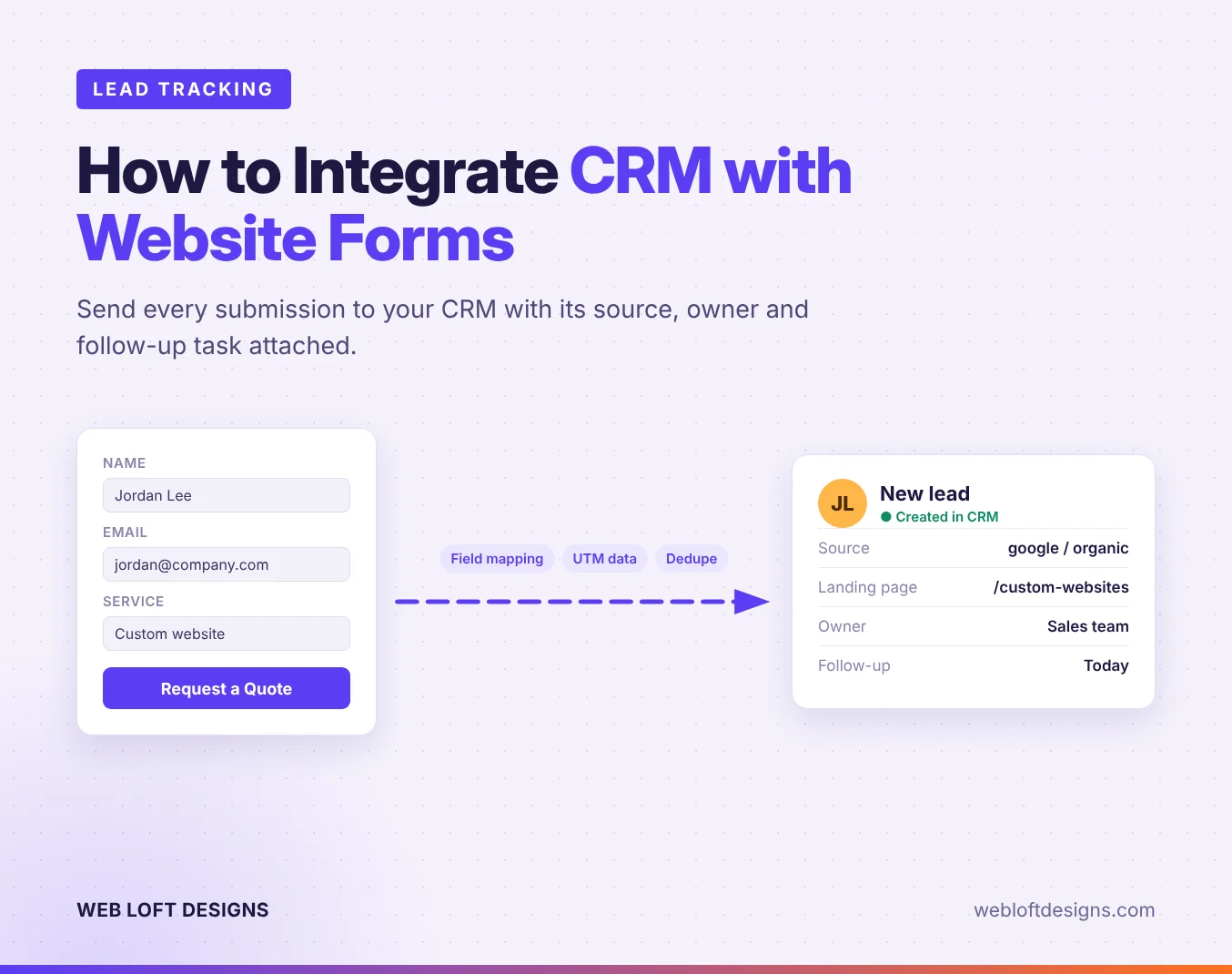
A form submission becomes a CRM lead when the data a visitor enters is sent to your CRM and saved as a contact or lead record.
The sequence looks like this:
- A visitor submits a contact form or quote request.
- Your website sends the field data to your CRM.
- The CRM creates a new lead record or updates an existing one.
- The CRM assigns an owner and triggers a notification.
Decide up front whether a submission creates a new record or updates a matching one. That one choice prevents most duplicate problems later.
Choosing a CRM Integration Method That Fits Your Website
The right integration method depends on your website platform and your CRM, not on which tool has the longest feature list. Match the method to what you already run.
| Method | Best For | Setup Effort | Control |
|---|---|---|---|
| Native integration | Common form and CRM pairings | Low | Medium |
| Plugin or extension | WordPress and Shopify sites | Low | Medium |
| API connection | Custom websites and web applications | High | Full |
| Webhook plus automation tool | Mixed stacks and custom routing | Medium | High |
| Email parsing | Quick starts and low volume | Low | Low |
Pick one path per form. Running a plugin and an automation tool that both push the same form creates duplicate records and confuses your sales team.
For custom websites and web applications, an API or webhook connection lets you control exactly what gets sent and when. Integrations are also one of the line items that move a project budget most, which we cover in our guide to how much a custom website costs.
To see what a better lead flow looks like in practice, read how we rebuilt the quote flow for IMS Relocation and how we turned a template site into a lead-generating website for Noble Dog Training.
CRM Form Field Mapping Without Duplicates or Gaps
CRM form field mapping is matching each website form field to the correct CRM field so no data is lost or misfiled. Get it wrong and you end up with blank phone numbers, orphaned notes and duplicate contacts.
Map fields in this order:
- Identity fields first: first name, last name, email, phone
- Source fields next: page URL, landing page, referrer, UTM values
- Context fields last: message, budget range, timeline, service interest
- Consent fields: if your form asks for marketing consent, map the checkbox value and the submission date so the record shows when consent was given
Write the rules down before you touch the integration. A mapping sheet with three columns (form field, CRM field, rule) forces decisions that otherwise get made by accident. For each field, decide whether it is required, how it is formatted and what happens when it is empty.
Validation rules that prevent cleanup work
- Require a valid email format, and block disposable email domains if your CRM supports it.
- Trim leading and trailing spaces on every text field.
- Normalize phone numbers to one format and store the country code separately.
- Limit free-text fields to a sensible length.
- Use dropdowns for budget and timeline instead of free text.
Deduplication rules
Match on email address as the primary key, with a normalized phone number as a backup. Then decide what happens for each match type:
- Exact email match: update the existing contact and attach the new submission as an activity.
- Phone-only match: flag it for review instead of auto-merging, because shared office numbers create false matches.
- No match: create a new lead record.
Let the CRM save the record first and run deduplication as a second step, so a failed match never blocks a lead from being saved. Review a duplicate report weekly for the first month after launch, while mapping mistakes are still cheap to fix.
Watch out: free-text answers to “How did you hear about us?” are useful but messy. Store them as they are, but don’t use them for routing or reporting. Use structured fields for that.
Error handling
Decide what happens when a required field is missing or a value fails validation. The safest pattern is to save the raw submission to a fallback inbox or holding table, mark it incomplete and notify the owner. Never drop a submission because one field didn’t match. A lead with a missing phone number is still a lead.
Setting Up UTM Tracking for CRM Leads
UTM tracking for CRM leads means capturing the campaign parameters from the landing page URL and saving them to the lead record. Without it, you know a lead came in but not what brought it.
Capture these values when the page loads and pass them into the form as hidden fields:
- utm_source
- utm_medium
- utm_campaign
- utm_term
- utm_content
Store them in dedicated CRM fields, not in the notes, so you can report on them.
Visitors rarely convert on their first visit. Save the first-touch source in a first-party cookie when someone lands on your site, then write both the first-touch and last-touch values to the CRM when they submit. A cookie only covers one browser, so a visitor who researches on a phone and converts on a laptop will still look like two sources. CRM tracking scripts that tie visits to a known contact close part of that gap.
Pair CRM attribution with analytics. Tracking form submissions in Google Analytics 4 shows which pages and channels produce leads, while the CRM shows which of those leads turn into revenue.
Routing, Notifications and Follow-Up
Lead management starts once the record lands: who owns it, who gets alerted and how fast someone follows up.
Set up three things:
- Lead routing: assign by territory, service line or round-robin.
- Notifications: alert the owner by email or CRM app within minutes.
- Follow-up tasks: create a task with a due date automatically.
Speed matters. Send high-intent forms, such as quote requests, to a named person rather than a shared inbox, and track time to first contact as a real metric.
Testing, Monitoring and Recovering Failed Submissions
Test every form-to-CRM path before launch and keep watching it afterward. Integrations break quietly when a plugin updates, an API token expires or a CRM adds a required field.
Before launch, test each path end to end
- Submit a test entry and confirm the CRM record appears with the correct values.
- Check that hidden UTM and landing page fields saved to the right CRM fields.
- Verify the notification reached the assigned owner, not just a shared inbox.
- Submit a duplicate and confirm the matching behavior you designed.
- Submit with a required field missing and confirm the fallback path works.
- Confirm spam protection blocks bots without blocking real visitors.
- Test on a phone, where autofill and keyboards behave differently.
What to monitor after launch
Track four numbers: submissions received, records created in the CRM, failed or held submissions, and average time from submission to record creation. A gap between submissions received and records created is your early warning. A sync delay of more than a few minutes is worth investigating.
Watch out: API rate limits and webhook timeouts are common causes of silent failures. During a traffic spike, the CRM may reject calls it would accept at normal volume. Build in a retry with a short delay, and log the failure if the retry also fails.
Recovery plan
- Log every failed submission with the raw data, the error message and a timestamp.
- Keep a fallback email notification so a broken integration never means a lost lead.
- Add a replay step so logged submissions can be resent once the connection is fixed.
- Assign one person to review the failure log weekly.
Ongoing monitoring is what keeps forms working after launch. Our website maintenance and support plans cover updates, monitoring and fixes for teams that don’t want to watch submissions themselves.
Turn Every Form Submission into a Tracked Lead
A form that fills an inbox is a start. A form that creates a clean, attributed and assigned lead record is a system, and the difference shows up in response time and in how many leads get followed up.
Web Loft Designs has been building custom websites, WordPress and Shopify stores and web applications since 2003. If your forms and CRM aren’t talking, talk to our team about your website.
Frequently Asked Questions
How do I connect a website form to a CRM without coding?
Use your form builder’s native CRM integration, a plugin or a no-code automation tool. Authorize the connection, choose the form and the CRM record type, map the fields and turn on notifications. Code is only needed when neither the form nor the CRM has a connector, which is rare for standard contact forms.
How can I track where website leads come from in my CRM?
Capture UTM parameters and the referring page in hidden form fields, then save them to dedicated CRM fields alongside the contact. Add a lead source field for the channel and a campaign field for the specific campaign. When a deal closes, you can report on which campaigns produced revenue, not just clicks.
What should I do if form submissions are not appearing in my CRM?
Work through the chain in order. Confirm the form logged the submission, check the integration’s connection status, review field mapping for required CRM fields the form doesn’t fill, check spam filters and conditional logic, then review the automation’s error history. Fix the first broken link and retest.
How do I prevent duplicate leads when forms send data to a CRM?
Use email address as the primary matching key and set the integration to update existing records instead of creating new ones. Add phone number as a secondary check. Clean up existing duplicates before you turn the integration on, and review a duplicate report weekly for the first month after launch.