


Table of Contents
- Why Track Website Form Submissions in Google Analytics 4
- Choosing a Method: Decision Tree for Form Tracking
- Google Tag Manager Form Tracking Setup
- Track Form Submissions as Conversions (Key Events) in GA4
- GA4 Thank-You Page Tracking and Success-State Detection
- Handling AJAX, Embedded, and Multi-Step Forms
- Test GA4 Events in DebugView and GTM Preview
- Consent, Privacy, and Data Minimization for Form Tracking
- Frequently Asked Questions
Why Track Website Form Submissions in Google Analytics 4
GA4 records page views on its own, but it doesn’t reliably record a completed contact form unless you set it up to. Without that setup, a filled-out “Request a Quote” form can show up as nothing at all.
That gap matters for three reasons:
- You can’t tie leads back to the traffic sources and campaigns that produced them.
- You can’t tell which pages actually generate business.
- You can’t prove your marketing spend is working.
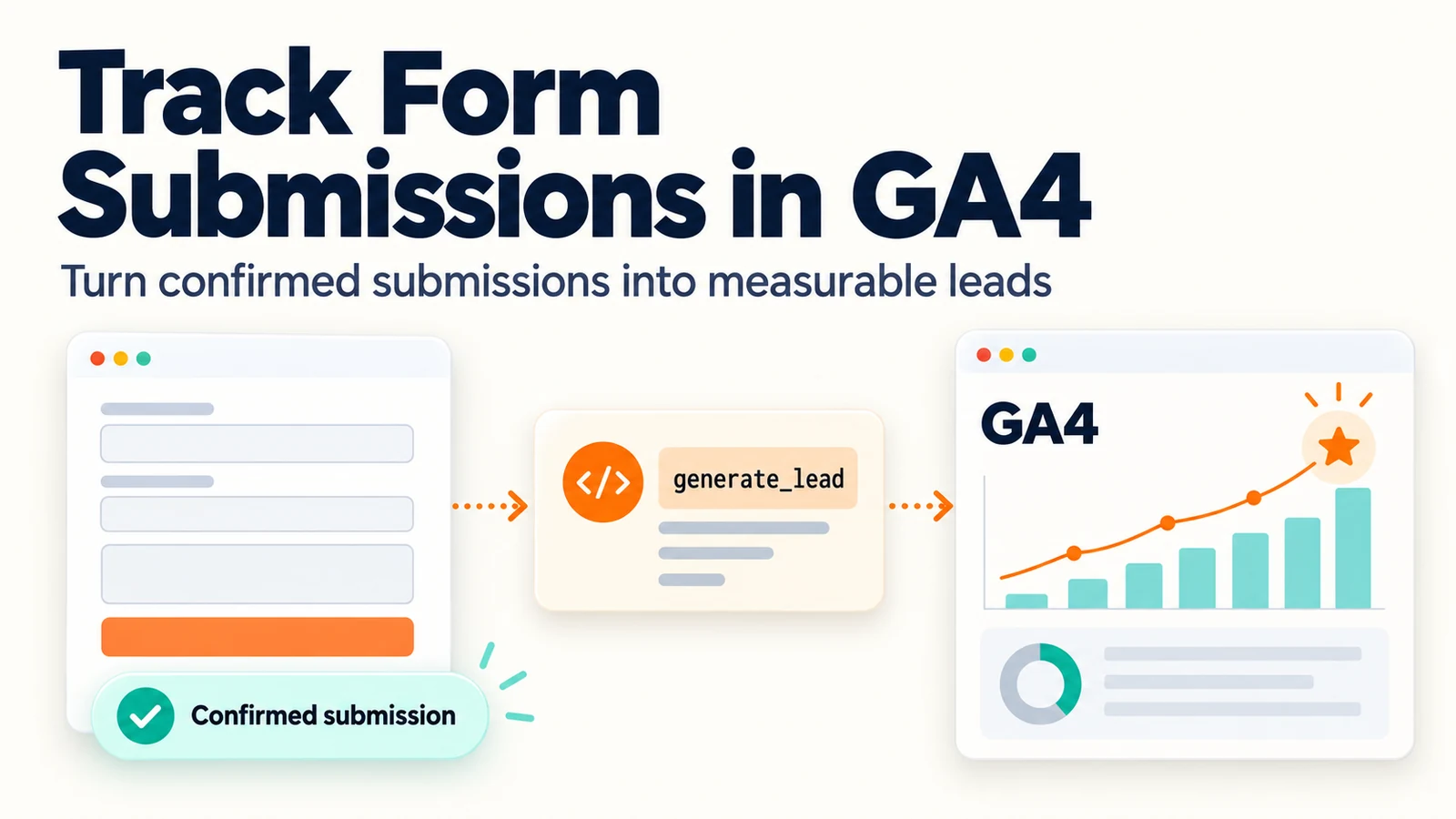
Google built a dedicated generate_lead recommended event for exactly this purpose, and lead submissions are one of the most common events businesses mark as key events in GA4.
Choosing a Method: Decision Tree for Form Tracking
Pick your tracking method based on how your form behaves, not on what’s easiest to set up. The wrong method produces either zero data or duplicate data, and both are worse than no data because you’ll trust them. After years of building lead-generation sites, we’ve found the question almost always comes down to one thing: what happens in the browser at the moment of a confirmed submission.
Work through this in order and stop at the first match:
- Does the form send users to a new page after submit? Use a thank-you page view. This is the most dependable method because the page only loads after the submission goes through.
- Does the form stay on the page and swap in a confirmation message? Use a GTM Form Submission trigger if the form uses a native browser submit, or a developer-pushed data layer event if it doesn’t.
- Does the form submit through JavaScript or AJAX with no page reload? Use a data layer event pushed in the confirmed success callback. A native form trigger usually won’t fire, and a click trigger will overcount.
- Is the form embedded from a third-party tool on another domain (inside an iframe)? Use a postMessage listener on the parent page, or the tool’s own analytics integration if it has one you can trust.
What each method actually costs you
Every method trades setup effort against reliability:
| Method | Setup effort | Data reliability | Where it breaks |
|---|---|---|---|
| Thank-you page view | Low | High | Forms that don’t redirect; users who bookmark, revisit, or refresh the page |
| GTM Form Submission trigger | Low to medium | Medium | JavaScript-handled submits; forms inside iframes |
| Data layer event | Medium (needs a developer) | High | The push is placed on submit instead of on the success path only |
| Third-party postMessage listener | Medium to high | Medium | The vendor changes its message format without telling you |
That last column is the one that costs you a quarter of bad reporting.
The two failure modes that waste the most time
The silent no-fire. A developer intercepts the submit with JavaScript to run validation or show a spinner. The browser never fires a native submit event, so your GTM Form Submission trigger sits armed and never goes off.
The double count. The form redirects to a thank-you page and a developer pushes a data layer event on success, and both are wired to GA4. Every lead now counts twice.
A quick way to tell which method you need
Open the form in a browser, open developer tools, and submit a test entry. Watch the Network tab:
- If the page URL changes to something like
/thank-you, you’re in method 1. - If the page reloads to the same URL with a success message, you’re in method 2.
- If you see an XHR or fetch request go out and the page stays put, you’re in method 3.
That five-minute check saves you from building the wrong trigger, which is the most common reason a form tracking setup quietly fails.
Pro tip: Before you build anything, ask your developer one question: “On a successful submission, does the page redirect, does it push to the data layer, or does it just show a message?” The answer tells you which method to use. Guessing costs more time than asking.
GA4 Enhanced Measurement vs. GTM Triggers
GA4’s enhanced measurement includes a Form interactions setting that sends two events automatically: form_start when a visitor first interacts with a form in a session, and form_submit when a form is submitted. You’ll find it under Admin > Data streams > [your web stream] > Enhanced measurement.
It’s a reasonable starting point if you have no developer access, but it has real limits for lead tracking:
- It relies on native browser form events, so it misses many JavaScript, AJAX, and embedded forms.
- It can fire on things that aren’t leads, such as site search boxes, newsletter signups, and scripts that use hidden forms behind the scenes.
- It fires on submit, not on confirmed success, so failed or rejected submissions can still be counted.
For forms that drive revenue, use a dedicated GTM or data layer setup and treat the automatic events as a rough engagement signal. If you build your own form tracking in GTM, either turn off Form interactions or give your event a different name (we recommend generate_lead) so the two never get mixed together in reports.
Google Tag Manager Form Tracking Setup
Google Tag Manager form tracking listens for a form submission, then fires a GA4 event tag with the details you choose. For a simple form with a native submit, setup takes about 20 minutes.
Here’s the sequence:
- In GTM, go to Variables > Configure and enable the built-in Form variables (Form ID, Form Classes, Form Element, and so on).
- Go to Triggers > New and choose Form Submission as the trigger type.
- Check Check Validation so the trigger only fires when the browser considers the submission valid.
- Select Some Forms and set a condition, such as Form ID equals contact-form. Save the trigger.
- Create a Google Analytics: GA4 Event tag, enter your measurement ID, name the event
generate_lead, add your event parameters, and attach the trigger. - Test in Preview mode (covered below), then publish.
Building the Form Submission trigger
The trigger is where most setups break. You need a reliable way to identify the form:
- Form ID is best when your developer sets a stable one.
- Form Classes work when IDs change from page to page.
- A CSS selector on the Form Element helps for forms inside popups or modals.
A common mistake is choosing “All Forms” on a site with search boxes and newsletter signups. You’ll flood GA4 with junk events. Always scope the trigger to the forms that matter.
Pro tip: Check whether your form uses a native submit or a JavaScript handler before you build the trigger. If a developer intercepts the submit, the Form Submission trigger never fires, and you’ll spend an hour debugging a tag that was never going to work.
Track Form Submissions as Conversions (Key Events) in GA4
To track form submissions as conversions in GA4, mark the event as a key event. In 2024, GA4 renamed what it used to call “conversions” to “key events”; the term “conversion” now refers to key events shared with Google Ads.
Once your generate_lead event is flowing, go to Admin > Data display > Events, find the event, and mark it as a key event.
Two things to watch:
- The event has to be received at least once before it shows up in the list. You can also add it by name under Admin > Data display > Key events.
- Key events count every occurrence by default, so deduplication matters (more on that below).
Using the generate_lead recommended event
generate_lead is a GA4 recommended event built for lead capture, so your data lines up with Google’s naming conventions and with any tool that reads GA4 data.
Send it with parameters that make the count useful:
| Parameter | What it tells you | Example value |
|---|---|---|
| form_name | Which form was submitted | contact_us |
| form_location | Where the form sits on the page | homepage_hero |
| lead_type | Type of inquiry | quote_request |
| value + currency | Estimated worth of a lead (Google’s recommended parameters for this event) | 50 / USD |
You don’t need to send the page path. GA4 already records the page location with every event.
One step most guides leave out: custom parameters like form_name, form_location, and lead_type won’t appear in your standard reports until you register them. Go to Admin > Data display > Custom definitions, create an event-scoped custom dimension for each one, and use the exact parameter name. Data starts populating from that point forward, so do this before launch, not after.
GA4 Thank-You Page Tracking and Success-State Detection
GA4 thank-you page tracking is the most dependable method when your form redirects. When a visitor lands on /thank-you, that page view is your lead.
You can set it up two ways:
- In GTM: create a Page View trigger where Page Path equals
/thank-you, attached to a GA4 event tag namedgenerate_lead. - In GA4 only: go to Admin > Data display > Events > Create event, create
generate_leadfrompage_viewwherepage_locationcontains/thank-you, then mark it as a key event.
The catch: a thank-you page view proves the page loaded, not that a real form was submitted. Refreshes, bookmarks, and direct visits all count. Keep the page out of your navigation and sitemap, add a noindex tag so it can’t be found through search, and avoid linking to it anywhere else on the site.
For forms that stay on the page, watch for the success state instead:
- The confirmation message appearing (an Element Visibility trigger in GTM can detect this)
- A success class being added to the form element
- A data layer push from your developer
Warning: Tracking the submit button click instead of the success state inflates your numbers. A user can click submit, fail validation, and never send anything. You’ll report leads that don’t exist and make bad budget calls based on them.
Handling AJAX, Embedded, and Multi-Step Forms
AJAX, embedded, and multi-step forms need success-state tracking, not click tracking. This is the gap most guides skip.
AJAX forms
Ask your developer to push a data layer event inside the success callback, after the server confirms the submission:
// Fire only after the server confirms the submission succeeded
window.dataLayer = window.dataLayer || [];
window.dataLayer.push({
  event: 'form_success',
  form_name: 'contact_us',
  form_location: 'homepage_hero',
  lead_type: 'quote_request'
});
In GTM, create a Custom Event trigger with the event name form_success, create Data Layer Variables for each parameter, and pass them into your generate_lead tag.
Embedded forms
Forms embedded in an iframe from another domain are invisible to GTM on your page. Many form tools send a message to the parent page when a submission succeeds. A listener in a Custom HTML tag can catch that message and push it to the data layer:
<script>
  // Listen for a success message from the embedded form tool
  window.addEventListener('message', function (e) {
    // Only accept messages from the form vendor's domain
    if (e.origin !== 'https://forms.example.com') return;
    // Match the success signal the vendor documents
    if (e.data && e.data.type === 'form_submitted') {
      window.dataLayer = window.dataLayer || [];
      window.dataLayer.push({ event: 'form_success', form_name: 'embedded_quote_form' });
    }
  });
</script>
Replace the origin and message check with what your form vendor documents, and re-test whenever the vendor ships an update.
Multi-step forms
Track two events. Send form_start (or a custom step event) on the first step, and send generate_lead only after the final step is confirmed. The gap between the two shows you where people drop off.
Test GA4 Events in DebugView and GTM Preview
Test GA4 events in DebugView before you trust any number. GTM Preview mode and GA4 DebugView do the work, but “the event showed up” is not the same as “the event is correct.” Here’s the test plan we run on every form we wire up.
Step 1: Confirm the trigger fires
- In GTM, click Preview and load your site.
- Submit a real test entry through the form.
- In the Tag Assistant panel, select the submission event in the left-hand timeline (for example, Form Submit or your custom
form_successevent) and confirm your GA4 tag appears under Tags Fired. - If it’s listed under Tags Not Fired instead, open the tag and review its trigger conditions. Preview marks the exact condition that didn’t match.
If no submission event appears in the timeline at all, the problem is upstream: the form isn’t using a native submit, or the success push never happens.
Step 2: Confirm the tag fires once, not twice
This is the step everyone skips. Count how many times your GA4 event tag fired for a single submission.
- Fired once: good.
- Fired twice or more: you have a duplicate. Common causes are two triggers attached to the same tag, a trigger that matches more than one form on the page, or a form that fires both a native submit and a data layer push.
Duplicate firing is the most common reason a form conversion rate looks better than the sales team’s actual lead count. Fix it before you publish.
Step 3: Confirm the event arrives in DebugView with the right parameters
With Preview mode still running, open GA4 and go to Admin > Data display > DebugView. Submit another test entry, click the event, and check the parameters, not just the name. Confirm that form_name, form_location, and every other parameter carry the values you expect.
If the event shows in Preview but not in DebugView, the tag is firing but the measurement ID is wrong, or it’s pointed at a different property than the one you’re viewing.
Step 4: Verify in the real reports, not just DebugView
DebugView is a live stream; it doesn’t tell you whether the event landed in your reports. After publishing, check Reports > Realtime for a quick confirmation, then go to Reports > Engagement > Events. Standard reports can take 24 to 48 hours to fill in, so don’t panic if the event isn’t there right away.
Once the event appears, compare the count to the number of test submissions you made. If you submitted three times and the report shows six, you have a duplicate firing problem you didn’t catch in Preview.
Step 5: Test the failure path
Submit the form with a required field left blank, or with an obviously invalid email address. Your tracking should not fire. If it does, you’re tracking clicks or attempts rather than confirmed submissions, and your numbers are inflated. This test separates a setup you can trust from one that just looks like it works.
Key takeaway: Always test with realistic entries, not “test@test.com.” Some forms block obvious test data, and some validation rules stop the submit before your trigger ever fires. Then run the failure-path test too. A setup that counts only successful submissions is worth more than one that counts everything and calls it a lead.
A note on deduplication
If a form fires both a thank-you page event and a data layer generate_lead event, you’ll double-count. Pick one method per form and stick to it. If you inherit a site where both are firing, decide which is the source of truth, turn the other off, and document the change so the next person doesn’t turn it back on.
Consent, Privacy, and Data Minimization for Form Tracking
Form tracking sits right next to personal data, so consent and minimization aren’t optional. If you run a consent banner with Google Consent Mode, your GA4 tags should respect the visitor’s choice.
Keep these rules in mind:
- Never send names, email addresses, or phone numbers as event parameters. Google’s Analytics policies prohibit sending personally identifiable information to GA4.
- Send only non-identifying values like form name, form location, and lead type.
- Honor consent choices before firing analytics tags.
Federal and state privacy rules continue to tighten around lead data, and a raw email address sitting in GA4 is a liability you don’t need. The Federal Trade Commission’s guide to protecting personal information is a useful starting point for what counts as sensitive.
Getting form tracking right is the difference between guessing at your lead flow and knowing which pages, campaigns, and channels bring in business. At Web Loft Designs, we build sites with clean form architecture, developer-ready data layers, and GA4 tracking wired in from day one, backed by custom web development, B2B web design, and SEO that tie directly to lead volume.
Frequently Asked Questions
Can Google Analytics 4 track form submissions automatically?
Partially. GA4’s enhanced measurement has a Form interactions setting that sends form_start and form_submit events automatically, but it relies on native browser form events. It often misses JavaScript, AJAX, embedded, and multi-step forms, and it can count search boxes or failed submissions as form submits. For lead tracking you can rely on, build a dedicated event through Google Tag Manager or a data layer push, then test it in GTM Preview mode and DebugView before trusting the numbers.
How do I track form submissions with Google Tag Manager?
Match the trigger to how the form submits. For native forms, use a Form Submission trigger with Check Validation enabled, scoped to the form’s ID, class, or CSS selector. For AJAX forms, use a Custom Event trigger tied to a data layer push that fires only on confirmed success. For embedded iframe forms, use a postMessage listener that pushes a data layer event. Then attach a GA4 event tag named generate_lead and verify it in Preview mode before publishing. Avoid click triggers on the submit button, because they count failed attempts as leads.
What should I do if GA4 is not recording form submissions?
Check three things in order. First, confirm the trigger fires by watching GTM Preview mode while you submit a test entry. Second, confirm the GA4 event tag fires on that submission, uses the right measurement ID, and spells the event name correctly. Third, open DebugView or the Realtime report to see whether the event arrives. A common cause is a JavaScript form that never fires a native submit event, which means you need a data layer push on the success callback instead of a Form Submission trigger.
How can I verify that a form submission event is reaching GA4?
Use DebugView alongside GTM Preview mode. Submit a test entry, then confirm the trigger fired, the tag fired once, and the event appears in DebugView with the parameters you set, such as form_name and form_location. After publishing, check the Realtime report right away and the Events report a day or two later. If you track form submissions as conversions in GA4, also confirm the event is marked as a key event so it appears in your key event reporting.